
Redesigns and migrations are when websites lose things: pages nobody remembered existed, metadata that took years to tune, a downloadable guide that was quietly earning links. Afterwards, the old site is gone and the only record is whatever the public archives happened to capture. A couple of hours of archiving beforehand saves weeks of detective work later.
The pre-launch archive checklist
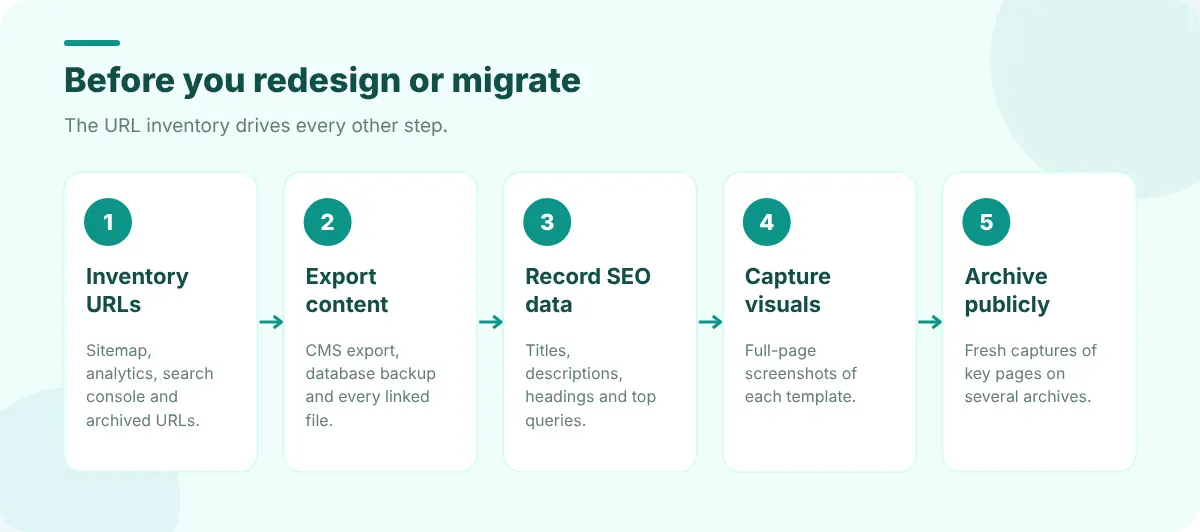
1. Build a complete URL inventory
Combine every source you have, because each one misses something:
- Your sitemap and CMS page list (current pages only).
- Analytics landing pages from the last year or two (pages that get traffic).
- Search console pages with impressions (pages search engines know).
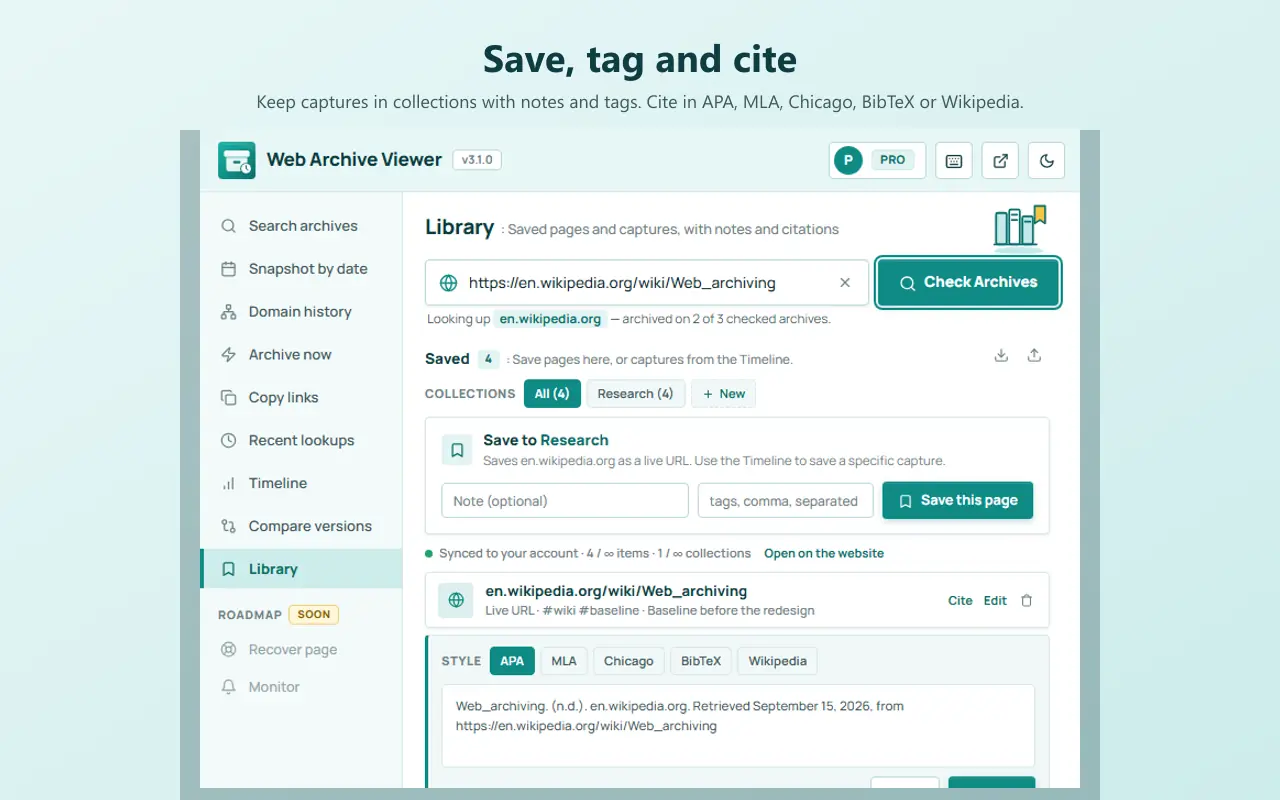
- Archived URLs under your domain, which include old pages that still have links pointing at them. Web Archive Viewer's Domain history lists them on six archives; Pro's Full URL inventory collects up to 10,000 into one filterable CSV. See how to find every archived URL on a domain.
Merge the lists, remove duplicates and add a column for the new URL. That spreadsheet becomes your redirect map.
2. Export the content
Take a full export from your CMS (posts, pages, media library) and a database backup if you have one. Download PDFs and other files linked from pages, since migrations often forget them.
3. Record the SEO data
For every important page, save the title, meta description, canonical URL, H1 and main headings, plus its traffic and top queries. After launch, compare the new pages against this baseline. Web Developer Tools' guide to checking meta tags and Open Graph shows how to read them quickly, and historical SEO analysis explains how to do the same from archives if you forgot.
4. Capture how it looked
Take full-page screenshots of the key templates (home, category, product, article, contact) at desktop and mobile widths. They're invaluable for design reviews, for answering "where did that button go?" and for your portfolio. Edit Page explains how to take a full-page screenshot in Chrome.
5. Archive the old site publicly
Private backups can be lost; public archives are independent and timestamped. Before the switch, request fresh captures of your important pages with Archive now (Web Archive Viewer sends the request to the three services that accept on-demand saves). Pro's Bulk lookup checks which of your URLs already have recent captures, so you only archive the gaps.
After launch: check nothing was lost
- 01Run every URL from your inventory and confirm it returns 200 or a single 301 to the right page. Web Developer Tools explains checking redirects and status codes.
- 02Compare titles and descriptions on the top pages with your baseline.
- 03Compare old and new versions of key pages; comparing two versions of a web page shows how.
- 04Watch for 404s in your logs and search console for a few weeks, and fix them with redirects.
FAQ
Is a CMS backup enough before a redesign?
It's essential but not enough. Backups miss URLs that only exist as redirects or links elsewhere, how pages looked, and SEO metadata generated by plugins. Combine a backup with a URL inventory, screenshots and public archive captures.
How do I keep my SEO during a migration?
Keep URLs where possible, 301-redirect every old URL to its closest new equivalent in one hop, carry over titles, descriptions and headings for important pages, and monitor 404s after launch.
Should I archive every page?
Archive every page that has traffic, links or lasting value. For very large sites, prioritise by traffic and inbound links, then archive templates and a sample of the rest.